NetSuite System Notes and Audit Trails: How to Find Out Who Changed What
“What changed over the weekend?” System Notes answer part of that question. Learn what they capture, where gaps appear for customisations and scripts, and how to build an audit trail you can trust.
ConfigLedger · 21 October 2026 · 12 min read
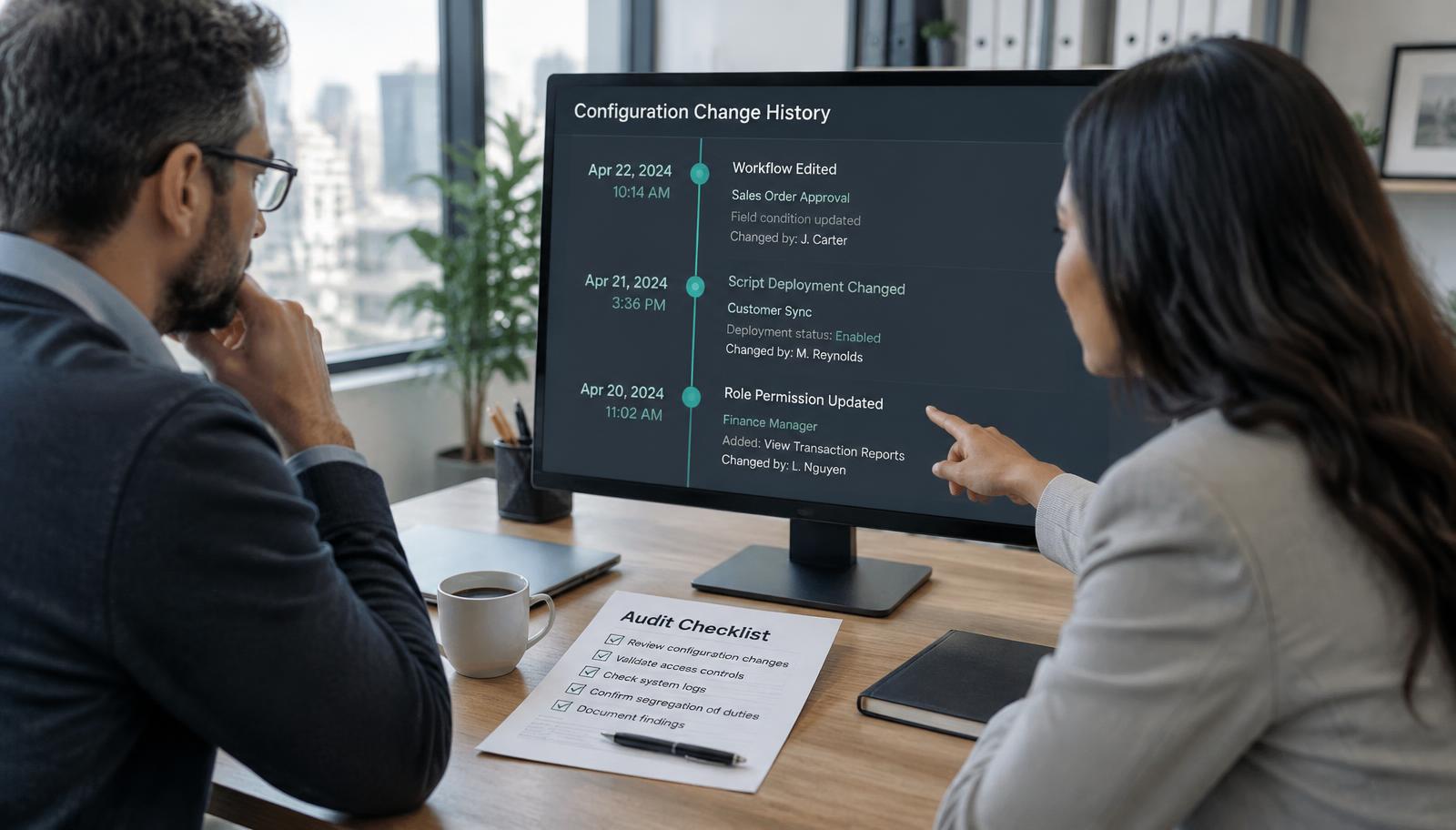
Monday morning, 9:05am. Sales orders are skipping approval, and nobody on the team admits to touching the workflow. The first question in every NetSuite incident—and every audit—is the same: who changed what, and when? NetSuite records a lot of this for you. The difficulty is knowing where to look, and recognising which parts of the story it does not tell.
This guide is for NetSuite administrators, finance systems teams, IT leaders and anyone preparing for an internal or external audit. It builds on our earlier articles on dependencies, pre-change checks, Sandbox testing and safe rollback, and focuses on the evidence side of change control.
What do NetSuite System Notes record?
According to Oracle’s System Notes Overview, a system note captures the date and time of a change, the user who made it, the context or interface it came from, the type of change, the field affected, and the old and new values. Notes appear on a record’s System Information subtab and can be searched across the account by users with the right permissions.
- Who: the user (or integration role) that made the change.
- When: the date and time of the change.
- How: the context, such as the user interface, CSV import, web services or a script.
- What: the record, the field, and its old and new values.
System Notes and System Notes v2
NetSuite now has two related systems. The original System Notes appear on records and configuration pages that have a System Notes subtab. System Notes v2, accessed from a link on supported pages, groups changes under higher-level actions and offers search and date filtering. Oracle publishes the list of record types and configuration pages supported in v2, so check it rather than assuming every page is covered.
Where configuration history gets harder to trace
System Notes are strong for record-level history. Configuration and customisation investigations are often harder, because the answer is spread across several places and some of the most important context is never captured in the system at all.
1. The “why” lives outside NetSuite
A note can tell you that a workflow condition changed on Friday at 6:12pm. It cannot tell you the business request behind it, who approved it or what testing was done. Without a linked change record, investigators are left interviewing people and reading chat history.
2. Customisations are spread across object types
One business change can touch a custom field, a workflow, a script file, a script deployment, a saved search and a role. Each has its own history in its own place. Reconstructing a single change means stitching those histories together manually.
3. Code history depends on how code is managed
If scripts are uploaded directly through the File Cabinet, you may see that a file changed but not an easy line-by-line comparison. Teams that manage customisations in a SuiteCloud Development Framework project under version control get a much clearer diff and review history—outside NetSuite, in their repository.
4. Integrations act through shared identities
When middleware or a connector changes records through a shared integration user, the system note shows that identity, not the person or system that triggered the request. Matching changes to integration logs becomes part of the investigation.
System Notes tell you what happened. A change process tells you whether it should have.
How to investigate an unexplained NetSuite change
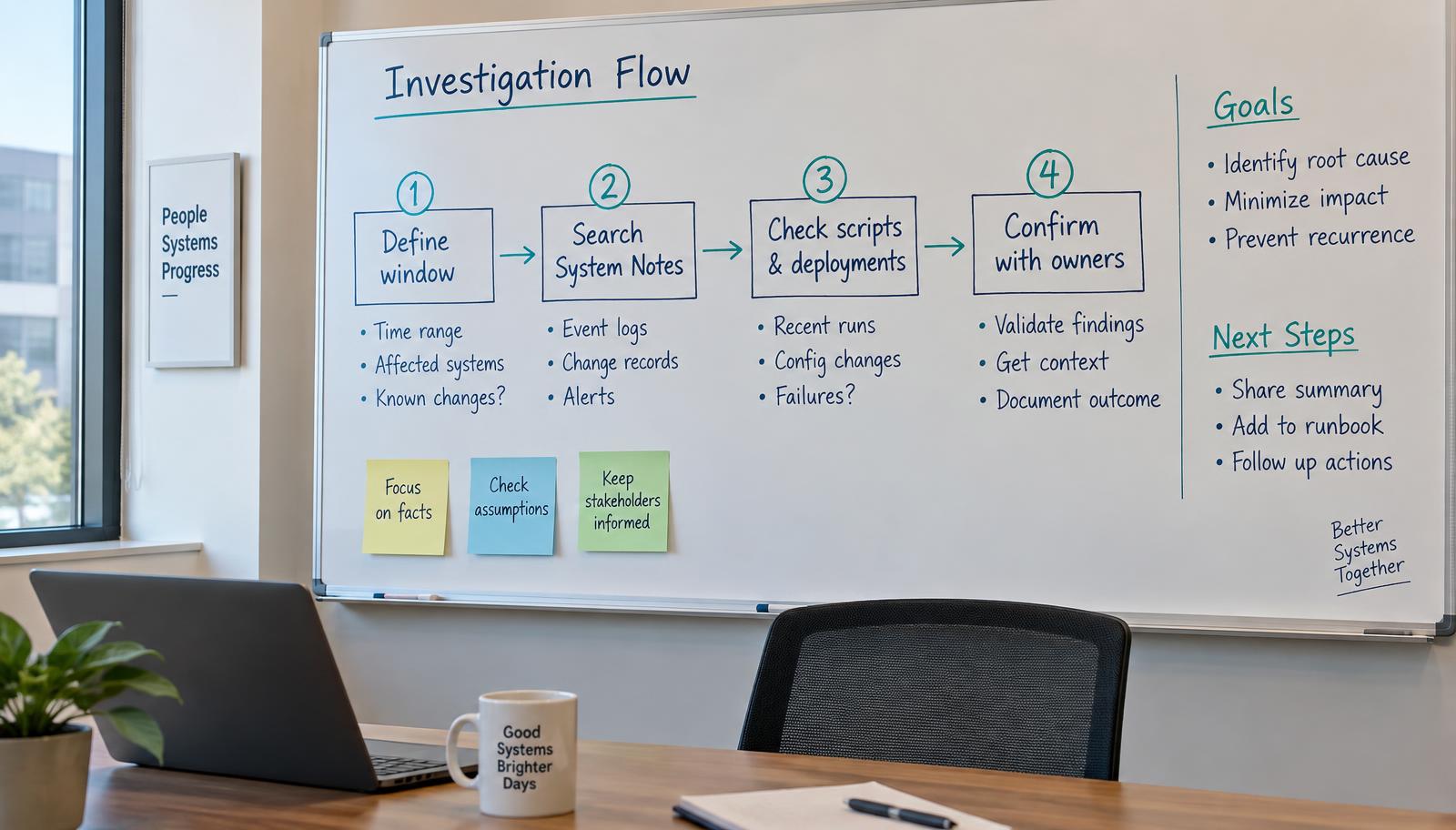
- Define the window: note when the symptom first appeared and the last time the process is known to have worked.
- Search System Notes: use a saved search or System Notes v2 filters for the affected record types, fields and date range, and note the user and context of each change.
- Check scripts and deployments: review recently modified script files, deployment status and execution contexts, workflows and any SDF deployments or bundle updates in the window.
- Confirm with owners: speak to the users or integration owners identified, match changes to tickets or requests, and record what you found—including what you could not confirm.
What a complete configuration audit trail should include
Auditors and incident reviewers rarely ask only “who clicked save?” They want to see that a change was requested, assessed, tested, approved and deployed in a controlled way. Oracle’s guidance on documenting changes encourages recording customisation changes for this reason. A useful change record links:
- The business request and the person who raised it.
- The objects in scope and the dependencies that were assessed.
- The before and after state of each changed object.
- Test evidence from Sandbox, including roles and data used.
- Approvals, with the approver’s role and the time of approval.
- Deployment details and post-release checks.
- The rollback plan and any incidents or corrections that followed.
Taken together with System Notes, this gives you two complementary views: the system’s immutable record of what changed, and the change process’s record of why and under whose authority.
Worked example: a sales order approval that stopped working
Consider a fictional company whose high-value sales orders stop routing for approval on a Monday. This is an illustrative scenario, not a ConfigLedger customer result.
- Window: approvals worked on Friday afternoon; the first unapproved order was saved Saturday morning.
- System Notes: the workflow shows no edits, but a search on the custom field used in its condition shows a list value renamed on Friday evening by an administrator.
- Scripts and deployments: no script changes in the window, ruling out code.
- Owners: the administrator confirms the rename was a tidy-up request from sales operations, made directly in Production without a dependency check. The team restores the routing, reviews affected orders and adds the field to their change process.
Where ConfigLedger fits
ConfigLedger is designed to keep the “why” next to the “what”. Each Change Set records the original request, the AI-assisted plan, the dependencies assessed, the proposed changes, before-and-after state, test evidence, approvals, deployment and an audit log. It complements NetSuite’s own System Notes rather than replacing them, so investigators and auditors can move from a system note to the change that explains it.
Frequently asked questions
Can System Notes be edited or deleted?
Oracle states that System Notes can’t be edited by any user, script or app. Oracle does document a separate process for removing personal information from System Notes where required.
Does NetSuite track configuration changes as well as record changes?
System Notes are logged on standard and custom records and on general configuration settings with a financial impact, such as company information, preferences, enabled features, accounting lists and tax setup. For other customisations, check the specific object and Oracle’s list of pages supported in System Notes v2.
How do I find who changed a NetSuite workflow?
Check the System Notes on the workflow and on the fields, lists and roles its conditions depend on, filtered to the date range when behaviour changed. Many workflow problems come from a change to a dependency rather than the workflow itself.
Are System Notes enough for an audit?
They are an important source of evidence, but auditors usually also want to see the request, testing and approval behind a change. Pair System Notes with a documented change process.
Sources and further reading
Continue reading
See your own account’s dependencies.
Book a walkthrough and we will show you how ConfigLedger maps a real NetSuite environment.